How to connect Excel MCP with VS Code

How to connect Excel MCP with VS Code VS Code is the most popular code editor out there. With its recent AI makeover, it can do more than just help you write code. You can connect your applications to it and let LLMs automate many of the mundane tasks in your workflow. In this guide, I will explain how to connect Excel with VS Code in the most secure and robust way possible via Composio.

Excel logoExcel
Oauth2S2s Oauth2

Microsoft Excel is a robust spreadsheet application for organizing, analyzing, and visualizing data. It's the go-to tool for calculations, reporting, and flexible data management.

54 Tools

How to connect Excel MCP with VS Code

VS Code is the most popular code editor out there. With its recent AI makeover, it can do more than just help you write code. You can connect your applications to it and let LLMs automate many of the mundane tasks in your workflow.

In this guide, I will explain how to connect Excel with VS Code in the most secure and robust way possible via Composio.

Also integrate Excel with

Why use Composio?

Composio provides:

  • Access to 1,000+ managed apps from a single MCP endpoint. This makes it convenient for agents to run cross-app workflows.
  • Programmatic tool calling. Allows LLMs to write its code in a remote workbench to handle complex tool chaining. Reduces to-and-fro with LLMs for frequent tool calling.
  • Large tool response handling outside the LLM context. This minimizes context bloat from large tool responses.
  • Dynamic just-in-time access to thousands of tools across hundreds of apps. Composio loads the tools your agent needs, so LLMs are not overwhelmed by tools they do not need.

Integrate Excel MCP with VS Code

1. Install with one click

Click the button below to add Composio to VS Code. You will be prompted to authorize. This requires VS Code 1.99+ with GitHub Copilot.

+Install in VS Code

2. Or add manually

Open or create .vscode/mcp.json in your project root and add the following configuration:

bash
{
  "servers": {
    "composio": {
      "type": "http",
      "url": "https://connect.composio.dev/mcp"
    }
  }
}

3. Authorize

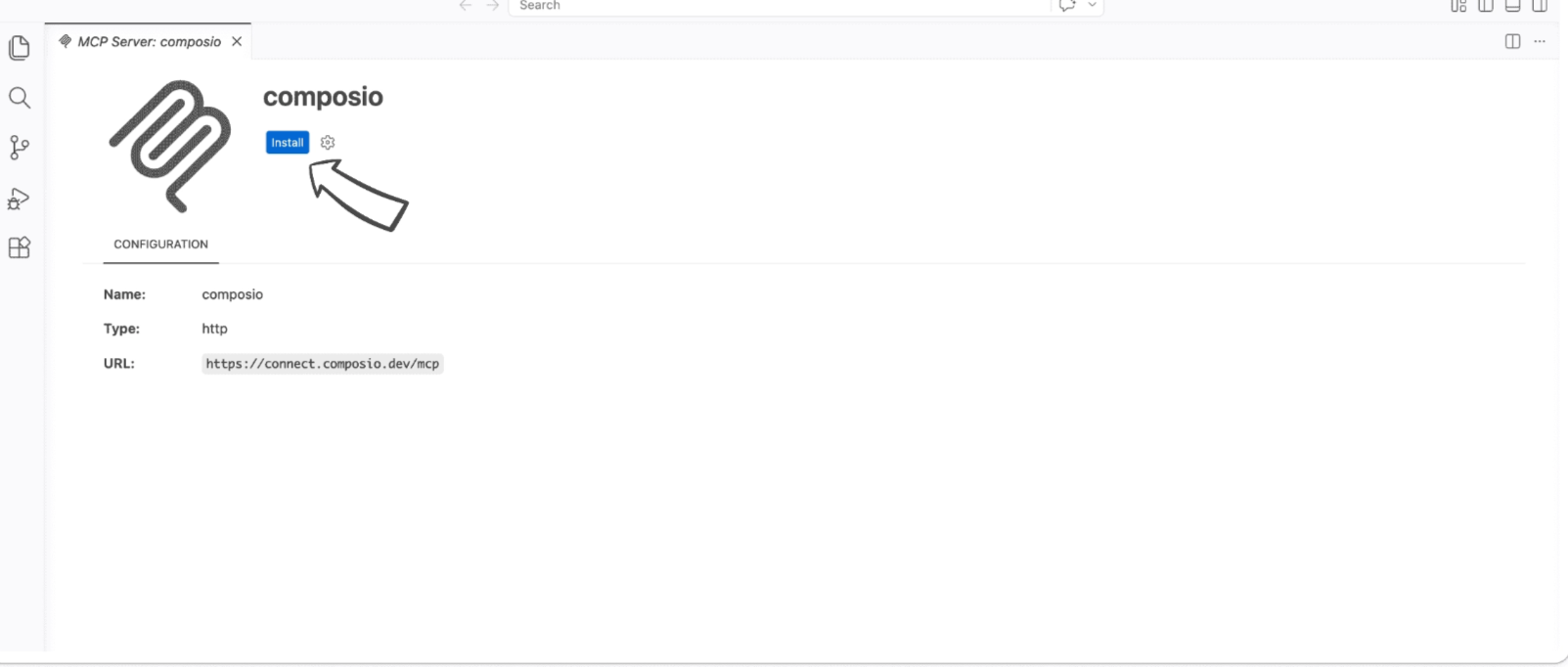
Click the install button to authorize VS Code to connect to Composio. VS Code will detect OAuth and prompt you to sign in.

VS Code MCP server install screen for Composio

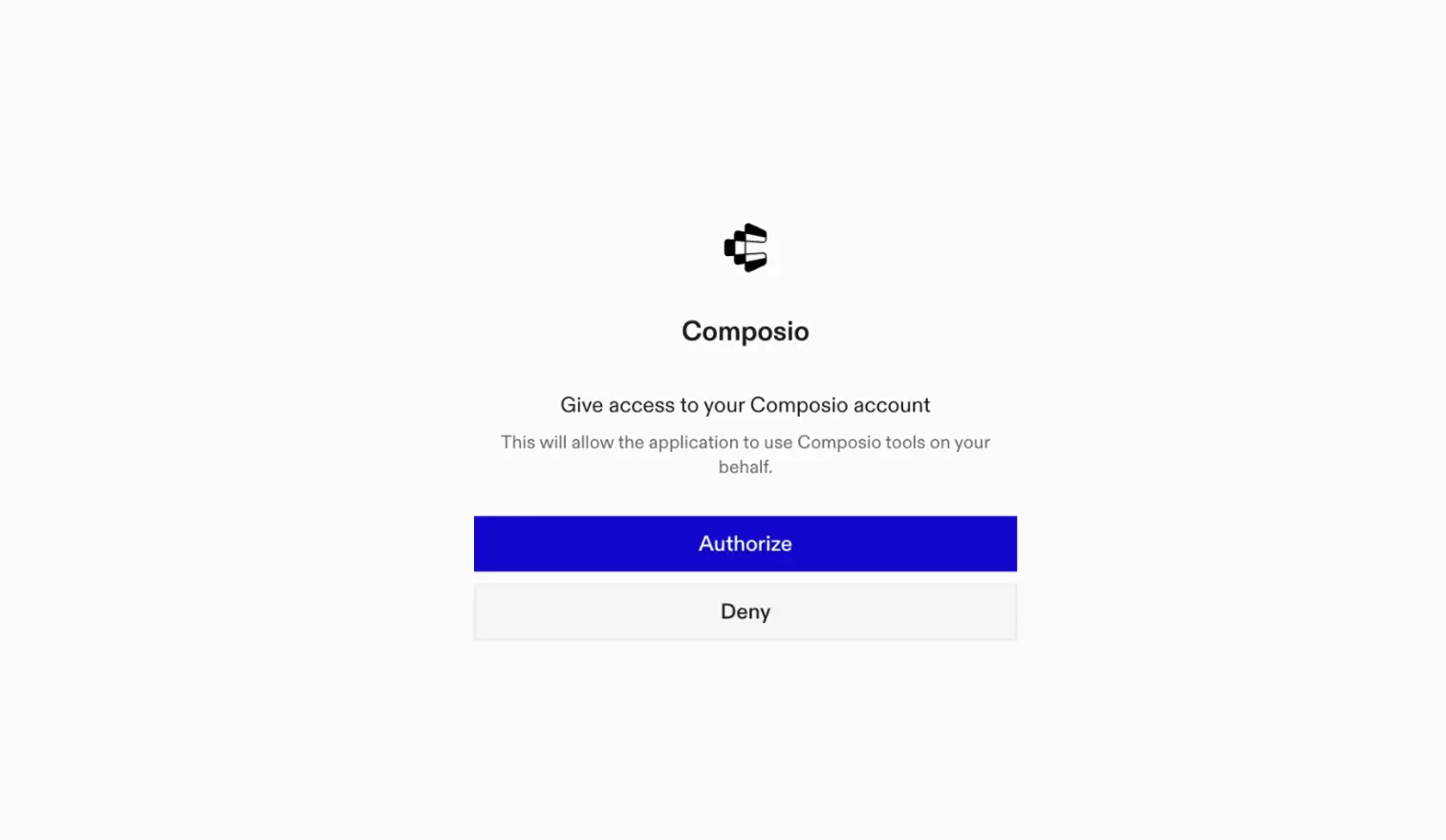
A browser window will open to authorize.

Composio authorization browser window

4. Authenticate Excel and start working

Back in VS Code chat, ask the agent to connect to Excel or give it any Excel-related task.

For example, ask it to:

  • "Add sales data row to Q2 table"
  • "Create bar chart from revenue column"
  • "Share this workbook with your manager"

It will prompt you to authenticate and authorize access to Excel.

That is it. Composio tools are now available in VS Code, and your Excel account is ready to use.

Way Forward

Now that Excel is connected, extend your setup by connecting the other apps you already use every day, so your agent can run true cross-app workflows end to end.

  • Connect Calendar to turn threads into scheduled meetings automatically.
  • Connect Slack or Teams to post summaries, approvals, and alerts where your team works.
  • Connect Notion, Linear, Jira, or Asana to convert requests into tickets, tasks, and docs.
  • Connect Drive, Dropbox, or OneDrive to fetch, file, and share attachments without manual steps.
  • Connect HubSpot or Salesforce to log customer context, update records, and draft follow-ups.

Start with one workflow you do repeatedly, then keep adding apps as you find new handoffs. With everything behind a single MCP endpoint, your agent can coordinate multiple tools safely and reliably in one conversation.

TOOLS

Supported Tools

Every Excel action and event your agent gets out of the box.

Add Chart

Add a chart to a worksheet using Microsoft Graph API.

Add SharePoint Worksheet

Add a new worksheet to a SharePoint Excel workbook using Microsoft Graph Sites API.

Add Table

Create a new table in a worksheet using the Microsoft Graph API.

Add Table Column

Add a column to a table using Microsoft Graph API.

Add Table Row

Add a row to a table using Microsoft Graph API.

Add Workbook Permission

Tool to grant access to a workbook via invite.

Add Worksheet

Add a new worksheet to an Excel workbook using Microsoft Graph API.

Apply Table Filter

Apply a filter to a table column using Microsoft Graph API.

Apply Table Sort

Apply a sort to a table using Microsoft Graph API.

Clear Range

Tool to clear values, formats, or contents in a specified worksheet range.

Clear Table Filter

Clear a filter from a table column using Microsoft Graph API.

Close Excel Session

Tool to close an existing Excel workbook session.

Convert Table To Range

Convert a table to a range using Microsoft Graph API.

Create Workbook

Tool to create a new Excel workbook file at a specified drive path.

Delete Table Column

Delete a column from a table using Microsoft Graph API.

Delete Table Row

Delete a row from a table using Microsoft Graph API.

Delete Worksheet

Tool to delete a worksheet from the workbook.

Export Workbook to PDF

Tool to export an Excel workbook to PDF via Microsoft Graph's format conversion.

Get Chart Axis

Tool to retrieve a specific axis from a chart.

Get Chart Data Labels

Tool to retrieve the data labels object of a chart.

Get Chart Legend

Tool to retrieve the legend object of a chart.

Get Range

Get a range from a worksheet using Microsoft Graph API.

Create Excel Session

Create a session for an Excel workbook using Microsoft Graph API.

Get SharePoint Range

Get a range from a worksheet in SharePoint using Microsoft Graph Sites API.

Get SharePoint Worksheet

Get a worksheet by name or ID from a SharePoint Excel workbook using Microsoft Graph Sites API.

Get table column

Tool to retrieve a specific column from a workbook table.

Get workbook

Tool to retrieve the properties and relationships of a workbook.

Get Worksheet

Get a worksheet by name or ID from an Excel workbook using Microsoft Graph API.

Get Worksheet Used Range

Tool to retrieve a worksheet's used range (active data region) without specifying a fixed range address.

Insert Range

Tool to insert a new cell range into a worksheet, shifting existing cells down or right.

List Charts

List charts in a worksheet using Microsoft Graph API.

List Chart Series

Tool to list all data series in a chart.

List Comments

Tool to list comments in an Excel workbook.

List Drive Item Children

Tool to list immediate children (files/folders) of a folder DriveItem using driveId and itemId.

List Drive Files

List files and folders in a drive root or specified path.

List Named Items

List named items in a workbook using Microsoft Graph API.

List SharePoint Tables

List tables in a SharePoint worksheet using Microsoft Graph Sites API.

List SharePoint Worksheets

List worksheets in an Excel workbook stored in SharePoint using Microsoft Graph Sites API.

List Table Columns

List columns in a table using Microsoft Graph API.

List Table Rows

List rows in a table using Microsoft Graph API.

List Tables

List tables in a worksheet using Microsoft Graph API.

List Workbook Permissions

Tool to list permissions set on the workbook file.

List Worksheets

List worksheets in an Excel workbook using Microsoft Graph API.

Merge Cells

Merge cells in a worksheet range using Microsoft Graph API.

Protect Worksheet

Tool to protect a worksheet using optional protection options.

Search Drive Files

Tool to search OneDrive drive items by query to discover Excel workbook IDs.

Sort Range

Sort a range in a worksheet using Microsoft Graph API.

Update Chart

Update a chart in a worksheet using Microsoft Graph API.

Update Chart Legend

Tool to update formatting or position of a chart legend.

Update Range

Update a range in a worksheet using Microsoft Graph API.

Update SharePoint Range

Update a range in a SharePoint worksheet using Microsoft Graph Sites API.

Update Table

Update a table in a workbook using Microsoft Graph API.

Update Worksheet

Update worksheet properties (name, position) in an Excel workbook using Microsoft Graph API.

Upload Workbook from URL

Tool to upload an external Excel file from a URL into OneDrive/SharePoint.

FAQ

Frequently asked questions

With a standalone Excel MCP server, the agents and LLMs can only access a fixed set of Excel tools tied to that server. However, with the Composio Tool Router, agents can dynamically load tools from Excel and many other apps based on the task at hand, all through a single MCP endpoint.

Yes, you can. VS Code fully supports MCP integration. You get structured tool calling, message history handling, and model orchestration while Tool Router takes care of discovering and serving the right Excel tools.

Yes, absolutely. You can configure which Excel scopes and actions are allowed when connecting your account to Composio. You can also bring your own OAuth credentials or API configuration so you keep full control over what the agent can do.

All sensitive data such as tokens, keys, and configuration is fully encrypted at rest and in transit. Composio is SOC 2 Type 2 compliant and follows strict security practices so your Excel data and credentials are handled as safely as possible.

Start with Excel.It takes 30 seconds.

Managed auth, hosted MCP servers, and every Excel tool your agent needs.Free to start.

Start building